Some deliveries may take a little longer than usual due to regional shipping conditions.

DOWNLOAD THE APP


Customer Services
Copyright © 2025 Desertcart Holdings Limited
DOWNLOAD THE APP

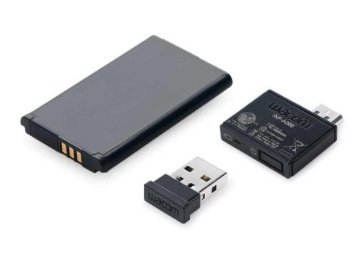

✍️ Elevate your digital artistry — where precision meets freedom.
The Wacom Intuos Pro Medium is a professional-grade pen and touch tablet featuring 2048 levels of pressure sensitivity, customizable Express Keys, and multi-touch gestures. It supports wireless and wired connectivity options, offers a natural paper-like matte surface, and is designed for ambidextrous use with advanced palm rejection. Ideal for illustrators, graphic designers, and 3D artists seeking precision and workflow efficiency.
| ASIN | B00EN27SHY |
| Average Battery Life (in hours) | 26 Hours |
| Batteries | 1 Lithium Ion batteries required. (included) |
| Best Sellers Rank | #539 in Computer Graphics Tablets |
| Brand | Wacom |
| Color | Black |
| Customer Reviews | 4.5 4.5 out of 5 stars (1,020) |
| Date First Available | July 28, 2017 |
| Is Discontinued By Manufacturer | No |
| Item Dimensions LxWxH | 14.9 x 9.9 x 0.5 inches |
| Item Weight | 2.2 pounds |
| Item model number | PTH651 |
| Language | English |
| Manufacturer | Wacom, Inc |
| Number of USB 2.0 Ports | 1 |
| Operating System | Windows |
| Product Dimensions | 14.9 x 9.9 x 0.5 inches |
| Rear Webcam Resolution | 680 Pixels |
| Screen Resolution | 2048 levels |
| Series | FBA_PTH651 |
| Standing screen display size | 6.7 Inches |
A**A
I really like this a lot
I ordered the medium tablet. I really like this a lot! it's my second Wacom product I've ever own (the first being my "Cube i7 Stylus Tablet" imported from China. It has a Wacom digitizer built in it, but because the pen is very small and the tablet is tempered glass, it's very difficult to draw on.). The Pro is actually bigger than I thought (looks more like a large). And it takes a little bit to get used to, but it's a great product. When I draw on the tablet, it really feels and sounds like paper because of the matte finish. What my box included: - The tablet - The Pen with eraser and left & right buttons on the side. - Changeable color rings (red, white, grey, and black). - Pen stand with changeable nib tips inside. - Installation disc. - USB to plug into the computer for charging or wired use. - Battery and sensor (for wireless use). Several questions from interested buyers: 1: Does the tablet have a switch for "Touch-On" or "Touch-Off". 2: Is the tablet very responsive with palm rejection? 3: Can the tablet be used as a mouse? 4: Can I draw with my left hand or any position if I switch the tablet around? 5: Does it work best wired or wireless? 1: When I first got the tablet, there was already a "Touch-On/Touch-Off" button. There's 8 Express Keys on the tablet, including the circle button. The "Touch" button was on the bottom of the "Settings" Express Key, which looks like a line on it. It might be different for some consumers. 2: Yes, the tablet is very responsive with palm rejection. I haven't had one problem drawing while my hand was resting on the tablet. 3: Yes, it's a pretty good mouse when used with your fingers. You can also customize various gestures. As for using the pen for a mouse, it's not so good. I would avoid it. It's pretty bad. 4: Yes! You can adjust the tablet in any position. But you have to set it up manually first before flipping the actual tablet around. After you've installed the Wacom drivers, search for "Wacom Tablet Properties" on your PC (Since I got Windows 10, I typed it in the Cortana Search Bar). Near "Tools", click on "Grip Pen". you will see three tabs listed below: "Pen", "Eraser", and "Mapping". Click on "Mapping". Next, you will see an image of a computer screen, a tablet, and a red-like box linking them to each other. On the right side of it, it reads: "Orientation". Select which orientation you want. I use "ExpressKeys Right" for my left hand and flip my tablet over. And you're done! 5: I hear a lot of complaints from users that the USB cord gets loose, and so it loses it's connectivity. So far, that hasn't happened to me. I don't move my tablet, so I never had it shutting off on me. Therefore, it works great. As for wireless, I haven't tried it yet. I sit at my desk a lot, so there's no need to get up to move around and use it. It's a great edition, but I don't need it. However, when I get the chance, I hope to try it out and do an update on it. *Some suggestions for consumers ready to buy this tablet:* -If you're a novice to drawing and just doing it for a hobby, I would not get this product. I would go for the "Wacom Intuos Art" or "Manga" line. They're pretty cheap. -If you're looking to get serious with your career but you never used a Wacom tablet, I suggest this one for starters. It's the most commonly used by Illustrators and Graphic Designers. - If you're a total pro, but not comfortable looking at a screen and drawing on a tablet at the same time, then go for the "Wacom Cintiq" line. But be warned: It's quite expensive! (At least $900 - $2,000 depending on the size.) Here are some suggested tablet sizes that perhaps fit best with your PC display: *Less than 12 inches = small tablet *12 - 23 inch screen = medium tablet *23 inches and up = large tablet
A**.
Natural feel, great controls, big step up from the "Creative Series"
I purchased this product to make me more efficient in Zbrush, and I couldn't be happier. I was using the Wacom Intuos pen and touch, which was a nice little tablet for sketching and most uses, but just wasn't cutting it for a control intensive application like Zbrush as well as I would like. I also use Mari and Maya as well as many other CG programs and this will come in very handy for those. The main point of getting this over the creative series is the amount of controls available on the left (or right depending on your handedness) side of the panel. There are a ton of buttons and even a wheel that can be configured to do just about anything you would want. It is super efficient to be able to change your brush size with a quick swipe of your free left hand instead of using a panel in the UI. In addition, the pen feels much better in my hand and the pen buttons are not pushed accidentally as much as I did when I used the creative pen and touch. With the creative pen, there were four buttons much like the controls on the Pro, but they were located on the top of the pad and were very awkward to use when sketching. The Pro is much more intuitive as you can use your left hand for buttons and controls and your right hand for the pen/mouse movements and functions. This feels natural almost like using a keyboard and mouse. They even thought to put different bumps in a brail style for the left side buttons so you know where your finger is.. brilliant. And of course all controls are fully customizable and macro ready along with different settings for each application you use. Throw in a nifty pen holder to help keep you from losing the pen along with a bunch of nib replacements inside it and I really couldn't have asked for more. I am using windows 8 and the driver from the site had the tablet up and running in no time. If you are interested in doing professional 3D and or computer graphics it will be your favorite piece of equipment. If you just need to do a few simple sketches in Photoshop or Paint then the creative series is probably just fine, and the Pro would be overkill. Good luck!
E**A
Glad to be back using a Wacom tablet
My very first tablet was a tiny little Wacom Graphire 4, which served me well for near on ten years before I switched it out - and even then, it had less to do with the performance of the tablet and more to do with the deterioration of the soft plastic of the pen and scroll wheel. Other than its age, it was golden - easy to install, easy to use, was EXTREMELY sturdy (I'm sure I could have dropped that thing from the roof and it would have been fine), and all in all a great tablet for a first-time digital artist. When I retired it, I decided that for my next tablet I'd try out a lesser known brand, thinking I would save some money and support the smaller guy. So I bought a Monoprice, a pretty big size that had great reviews.... The only problem -- the thing never ONCE installed correctly (I tried so many different times). Figuring out the drivers with Monoprice was the absolute LEAST user-friendly process I've experienced with software. There was intermittent lag time from pen to screen, the nib sensitivity was crap and the nib itself wore down in a month, customer support sucked... Sometimes I plugged it in and the thing didn't even respond before the sixth try. I got it to an acceptable working condition, but the thing never ran 100% the way it was supposed to, and I kind of hated using it for the two years I've had it. Came back to Wacom with the Intuos Pro Touch, and it's like seeing an old friend again! I love this tablet! The install disc didn't read on my computer, but it was easy enough to get the drivers from Wacom's website, and once I did that, they WORKED the way they were supposed to, THE FIRST TIME. I chose the medium size, which is plenty of room to work on my 27XW monitor. The levels in the nib are a dream, and I didn't realize how much I missed having the eraser feature on the pen itself until I got it back. The hotkeys and four-function scroll wheel are a cool added bonus for me, and have already been super convenient in the short time I've been working with this tablet. The touch function is really cool too - and useful for my particular setup (I work on an external monitor through my laptop - sometimes mousing can be a bit of an unnatural reach). I love that you can turn the touch feature on and off, and that when you hit a hotkey the tablet "reminds" you via your screen what the key does. TBH I never had an issue with nib wear in the past, and though I've seen some comments here addressing how quickly the nib wears down, I honestly don't see it being a problem in the future. Maybe I just have a light touch (in fact, I never needed to replace the nib on my old Graphire even once). The durability feels good - definitely like I could use this tablet for the next ten years, like my old Graphire. Honestly.... if you're beyond a beginning digital artist's level and are serious about the quality of the tool you're buying, and looking at the price tag thinking you might try out a cheaper brand first - don't waste your time. Wacom is the best, hands down.
S**.
A fantastic graphic tablet..
I bought this graphic tablet 3 weeks ago. I had never seen a graphic tablet ever before. The only reason I bought this was, mouse which had become a PITA. I recently started doing senior sessions and portrait sessions. Every session is about 3-4 hours long. I end up with approximately 25-30 keeper photos that I take to the Photoshop to process. Now making 15 layers on each image, running masking, brush strokes is too much of a thing to do with a mouse. My hands and fingers were getting sore. And let's admit that mouse is much more time consuming. To reach point B from point A, you have to drag the mouse all the way. I read reviews here and watched a few videos of this graphic tablet and I ordered it. You can call it an impulse buy. This thing is a treat to work with. The whole monitor screen is mapped with the tablet. You don't have to drag the pen on the tablet to move the cursor. The cursor moves as you hover the pen over the tablet. It is wireless (you gotta charge the battery after 10-11 hours of continuous use). The pen is so so amazing and comfortable that you don't even get tired. It made my processing so efficient that now I spend more time with the camera and less time in front of computer processing the images. Due to friction and extensive use, the nip does wear out but the pen comes with enough extra nibs that will go on for at least 2 years. You can buy extra nibs for like $10 or so anyway. Conclusion: This is a fantastic piece of technology that has been invented to boost up your efficiency. Yes it is expensive and it's expensive for a reason.. it has many functionality that other tablets don't have like wireless, more than 2000 pressure points etc. If you are not processing a large number of images every day, I'd say go and buy a gaming laptop or maybe a less expensive tablet like bamboo or something. This is a tool that will help you to make your work flow more efficient . Look no further..
C**A
Good tablet; most problems with it are essentially superficial in nature.
I purchased this tablet after trying out a few other, cheaper options. The Wacom Intuos (the lower-end version of the line) was a disappointment to me, and I tried out a different brand which was even further below my expectations, but when I finally gave in and ordered this one, paying a bit more for it, I was pleased with what I got. A few small criticisms, but overall I'm quite happy with its performance. It offers good pressure sensitivity, and the express keys work well for me. My last good tablet was a Bamboo and had four express keys, so upgrading to eight of them was pretty nice. The touch function can be a little annoying at times (and I haven't found the right settings to fix that, which was easier to do on my Bamboo). For now, I've been using the tablet with Touch turned off. It kept scrolling, clicking and selecting when my hand brushed the surface, and no amount of fiddling with the touch sensitivity seemed to solve that problem; on the Bamboo, it was easy to adjust the settings and stop the accidental clicks/scrolling. On the bright side, having eight express keys gave me the perfect chance to bind Zoom In and Zoom Out functions to a couple of those extra buttons (and, there's always that multi-function touch ring which I'm working on getting the hang of). The pen stylus has a great selection of nibs to choose from, which is great for me. The felt nibs do an interesting job of adding friction, but so far I have primarily used the plain black ones for most of my sketching. The only thing I don't like about the pen is the texture of it; it isn't a typical smooth plastic, but rather it has a 'velvety' kind of finish, making it soft to the touch--and a magnet for lint and dust. I find myself regularly needing to wipe it with a (very lightly) damp cleaning cloth to rid it of the particles and dust clinging to its surface. That may not be a big deal to most others, but for me, it's still a 'new' device, and I like it to look new. The dust problems with the pen take away from that. Finally, I clearly got lucky in terms of the USB port on the tablet; I haven't noticed any loose fittings or bad connections on mine, although I know a lot of reviewers had problems with that. If mine starts to loosen over time, I will try to update this review to report on it. All told, it's a good tablet with good performance, but the touch functions on the main surface and the finish of the pen itself detract from my overall opinion, giving it a solid four stars in my book. If you don't want to use the touch function and you don't care if your pen looks dirty all the time, you may well love this tablet more than I do.
M**H
Works Great Until Wind Blows on the USB Port and Renders the Whole Thing Useless
I upgraded to this tablet after using a Bamboo Create (another Wacom product) for nearly five years. And I was very happy with this tablet at first! There were a couple of functions that irked me on occasion (resting my hand on the touch-sensitive buttons on the side would bring up a side-menu on the screen that would only go away after I lifted my hand back up and touched another button), but the pen sensitivity was great. But this tablet has the same problem as the Bamboo Create tablet had, and that is a very poorly-designed USB port. Somehow the port on the tablet that connects it to the PC came loose, and now it does not work. I tried a number of solutions with no avail. If you do decide to invest in this tablet, make sure you take VERY GOOD CARE of the cords and don't do anything to move the USB port around. If you aren't VERY careful, and something happens to it, good luck contacting Wacom's customer support, because I have tried over the last couple weeks and have not heard back from anyone. I loved this tablet while it worked, but I am very reluctant to recommend anyone else buy it knowing that Wacom just can't seem to figure out how to build durable USB ports and can't be bothered to offer customer support for people looking for a solution.
J**.
Really the only choice for Professionals before the Cintiq
If anyone tries to tell you that the Intuous Sketch comes even close to this product, be wary. As a student I have breached into the professional art world several years ago and found that expensive equipment did the job in a superior way but was just impossibly out of my budget. In an attempt to make a smart purchase I hesitated on buying the Pro and bought the sketch. What I found was a subpar pen pressure that only works for someone who is new to the field. I returned it and bought this product and now I want to explain why it is superior to the others on the current market: 1. Size: Even at a medium the Intuous Pro is a size adjustment on the former standards (the Intuous 4 and 5, which I have had both of) of size. It's large enough that I wouldn't really consider getting a bigger size as the product fits cozily into a backpack or a carrier bag. Any bigger and you might have to pick a different piece of equipment. 2. The pen pressure on it is perfect. I rely on pen pressure for all of my works in order to use opacity, line size, and blending to the best capacity. The cheaper alternative to this tablet has pen pressure that is frustrating while this tablet feels like an extension of my hand. 3. Price: Now I know the price is daunting. . .but comparatively it is acceptable. Your other choices are tablets that are too expensive or too cheap. Either you spend a third of the price and get a tablet incapable of detecting pressure that easily wears down pen nibs or you spend three times the cost to get the industry's standard Cintiq. . .in a small size. To get the right size of a Cintiq to hold up in the current industry you're likely to spend about 1300-2000 dollars easily. The Intuous Pro is the best bet for someone who wants to work with professional quality but doesn't have the bank account to look at a Cintiq yet. My biggest complaint is the complaint a lot of people have: I am sick of the cop out of a pen that needs the nibs replaced. I work in an art department and Cintiq's themselves come with pens that do not wear down. It is unfair of a company to make the less pricey choices cost more over time (though a very, very long time) due to accessories that did not exist before. If 30 students in an art department can check out the same pens for an entire semester without needing a nib changed, so should people who buy this product. That being said I am happy I bought this and would not return it. It is an investment I can guarantee with my pride as both a student and a professional.
D**X
Great product!
I've never owned a drawing tablet before. And to tell the truth, i've never saw myself as a good artist. I've been developing a program in java and i wanted some drawn sprites. I drew a couple of animations with a mouse but it didnt have the control i wanted and my linework left something to be desired. Again, im not a really good artist but this tablet doubled my productivity. With the mouse i had to use the undo button many times for almost every line. With the tablet i rarely use the undo button. If i had to use it, it is one of the mapped buttons on the side of the tablet(which are very nice). The wireless function in my experience, i had some missed commands when im 7ft back(my monitor is 52". not ideal but thats what i have). As to the usb issue. The plug doesn't fit SUPER tight but it doesn't need to. I didnt find it to be loose or flimsy. If you constantly hit the plug while its plugged in i COULD see how it would mess up, but most things are like that. The driver issue that people talk about is probably caused from them using the wireless kit immediatly and not using the usb cord first like the directions state. By the way, the battery comes charged halfway and there is both an onscreen icon and a light on the tablet itselft indicating battery life. Pros- comes with wireless kit batterylife(around 8-10hours of constant use) plug in with usb 1st time use and it will autoload drivers Very sensitive comes with nibs love the texture of the tablet the buttons on the side are VERY helpful.(example in gimp mine are: new image, new layer, precision mode, save, undo, eraser brush, paintbrush, and i forgot last one. on the pen there are 2 buttons. i have them as + or - brush size) The buttons on the side are also touch sensitive. Say you forgot what application specific command that button does, all you have to do is put your finger on top of the button and an onscreen menu comes up and displays the commands. Cons- finish seems to attract fingerprints. if you hurry and plug wireless kit in without using usb first, the drivers dont load properly These are all first impressions(ive had the tablet 1-2 weeks). I will update in a couple of months. If this review was helpful, please click the yes button below.
Trustpilot
3 days ago
1 day ago