🔗 Unlock wireless potential—because your devices deserve to play together effortlessly!
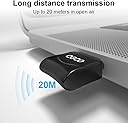
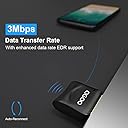
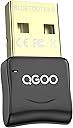
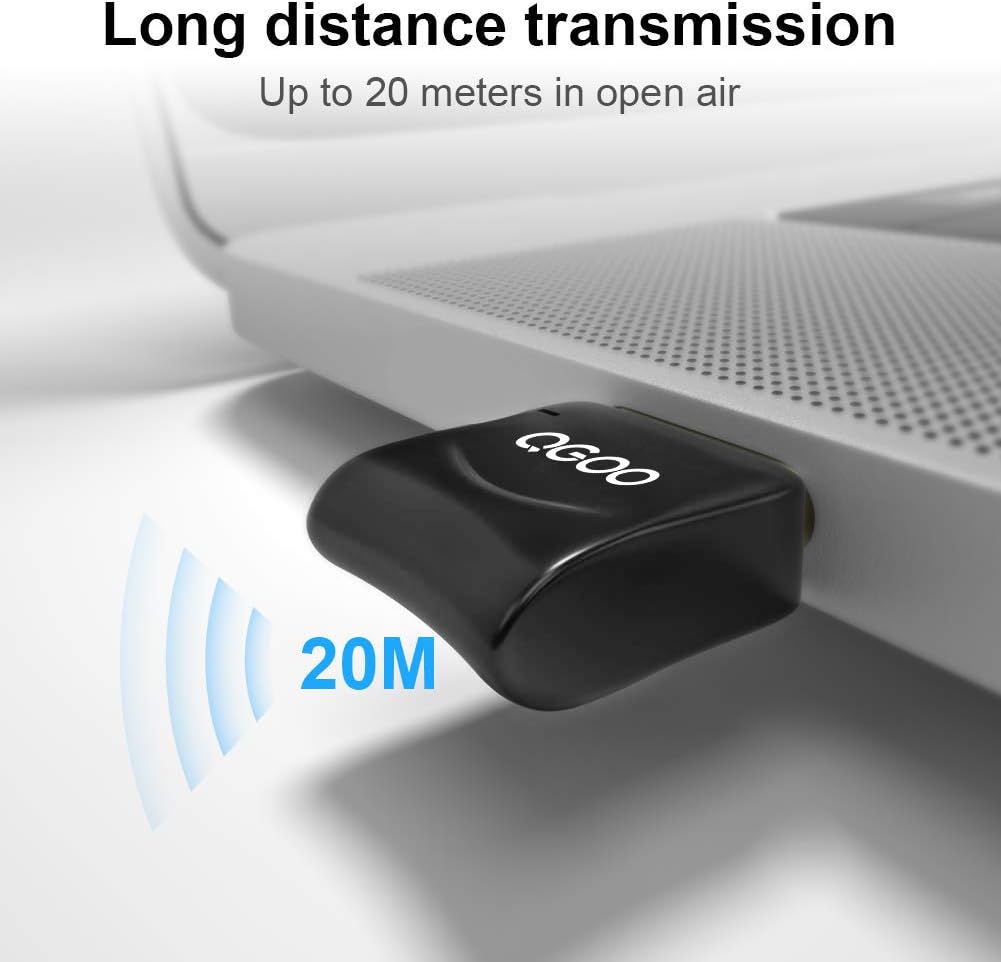
The QGOO USB Bluetooth 4.0 Dongle is a compact, energy-efficient adapter that adds Bluetooth functionality to Windows PCs and laptops. Supporting data transfer speeds up to 3 Mbps and a wireless range of 30 feet, it enables seamless connections with peripherals like keyboards, mice, headsets, and speakers. Its plug-and-play design works across multiple Windows versions, making it an essential upgrade for both new and legacy systems.


| ASIN | B07JVBFVRX |
| Best Sellers Rank | #488 in Bluetooth Network Adapters |
| Brand | QGOO |
| Color | BT |
| Customer Reviews | 4.2 4.2 out of 5 stars (2,604) |
| Date First Available | August 20, 2018 |
| Is Discontinued By Manufacturer | No |
| Item Dimensions LxWxH | 1.1 x 0.67 x 0.31 inches |
| Item Weight | 0.917 ounces |
| Item model number | B333 |
| Manufacturer | QGOO/Shenzhen Denos Trade Co., Ltd. |
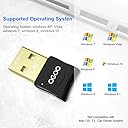
| Operating System | Windows 11,Windows 10,Windows 8,Windows 7,Windows Vista,Windows XP |
| Product Dimensions | 1.1 x 0.67 x 0.31 inches |
N**D
Cycling Pain Cave: Replaces poor Bluetooth receiver on Lenovo Legion Y530
Bought a 2019 Lenovo Legion Y530 Windows 10 x64 laptop to use with virtual indoor cycling training, i.e., Zwift, Sufferfest, Trainer Road, etc... The Legion was absolutely dismal when connecting and maintaining a connection to the various pain cave hardware: * Elite Direto 2 Trainer * Wahoo Heart Rate Monitor * Wahoo Cadence Sensor Tried a few different dongles for better connectivity; even tried an Ant+ dongle. The other dongles would lose connectivity at least once a training session, if not more. Aaack! Plugged in QGOO CSR 4.0 dongle and the simple plug-n-play did it's magic. No drivers or anything else to install. Took less than a minute and everything was up and running. Zero connectivity disconnects over the past couple of months. The other dongles are sitting in the p.o.s. drawer. Pro Tip: Make sure you disable your laptop's existing bluetooth driver, i.e., Realtek driver or similar: 1. Win key: Device Manager - click icon 2. Expand the Bluetooth node 3. Disable the Realtek Bluetooth Adapter (or similar). Do not disable the Microsoft or Generic adapters/drivers. Not sure if this allowed, but the other dongles that under-performed: * ASIN: B076GY91CM Avantree Dedicated Windows 10 Bluetooth USB Adapter - DG40SA * ASIN: B077Y8766F Mini Size ANT+ Dongle USB Stick Adapter In summary, very cost-effective and gets the job done!
G**Y
Not Plug and Play on Windows 10. Overall very satisfied. See update, below.
There were several adapters of this type to choose from on Amazon. I'm not really sure why I selected this particular one. I did go over reviews. The price at $9 seemed very reasonable. I installed this adapter on an old Gateway (2005 vintage, Pentium D processor) computer running Windows 10 Home (Version 1909). The computer has no built-in Bluetooth capability. I assumed by reading the description on Amazon that this adapter was Plug and Play. I tried that. But I needed to install CSR 4.0 (Bluetooth Harmony) from the supplied CD-R. The supplied printed instructions are very difficult to read. The screen images are not clear. The CD-R has a PDF of the instructions so I printed those out. During the installation of CRS 4.0 there was a screen to select three default settings: "Discovery Mode", "SCMS-T" and "Device Type". The Device Type was clear enough ("Laptop" or "PC/Desktop"). I was not clear how to set the first two options. However, the instructions specified the default settings to use. Once I got this installed, I went to the Windows Settings, System, Sound. There are two choices related to the Bluetooth: "Bluetooth Audio Renderer (Bluetooth Stereo Audio)" and "Bluetooth Hands-free Audio (Bluetooth Hands-free Audio Device)". I used a Jaybird X3 headset as the target audio device. The "Renderer" option works loud and clear. The "Hands-free" options was about 30dB lower in volume. Both settings seemed to pick up the microphone of the Jaybird X3. The instructions mention "Renderer" but not the "Hands-free" option. Once I did all this somewhat complex installation and configuration (2 stars), the sound was clear and noise free (5 stars). I walked out of the house to give some distance between the computer and the Jaybird X3. I reached approximately 35 feet before the sound began to break up. Overall, I'm very satisfied to be able to get more mileage out of my very old desktop computer. I will recommend this device to a friend with a 10 year old HP laptop that that does not have Bluetooth. I'm not sure why the device is not Plug and Play on my computer. 2020-05-15: Update. I plugged the device into my friends 10 year old HP laptop. I didn't load any additional software. The device worked perfectly. I paired it to my Bluetooth speaker and played music in less than a minute. So I changed my rating to 5 stars. Perhaps my old Gateway desktop was too old to handle the Plug and Play.
Z**A
Worked once for my controller, barely works for headphones.
I primarily bought this device for use with my gaming PC. I intended on using Bose QC35 Headphones and a Steelseries Stratus XL (with the updated drivers installed already). The first time I used this device, it worked after a bit of tinkering. Less than a day later, the controller had stopped pairing entirely and simply says "No pairing response received" when I attempt to re-add it. Everything I've done has not fixed it. My last resort is a complete system restore, but it honestly isn't worth the time at this point. Bear in mind that this same controller works absolutely fine on my Note 9 and Macbook 2016. The Bose headphones are having issues too; they pretty much always default to the handsfree headset mode when initially paired. This mode is essentially call-quality audio and sounds terrible. It also picks up my voice and replays it back to me. It's unusable. The only way I can get it to stop and go back to the standard stereo audio is to restart my computer a time or two. Disabling the handsfree profile does nothing to stop this from occuring. Not pleased with this and will likely buy a pcie bluetooth adapter instead of these third-party dongles. UPDATE: I freshly installed windows and the dongle worked exactly how it did when I first got it. Windows natively recognizes the dongle as a bluetooth device and allows me to switch bluetooth on or off and search for new devices to pair directly from the windows bluetooth settings, all without having to download any drivers (see picture attached for example) Pairing works fine so far. Will update if anything happens. UPDATE 2: Ever since the fresh install of Windows it has worked pretty flawlessly with my Stratus XL. The best advice I can give anyone is to not install any drivers for it since it seems to work best right out of the box. Works only in certain ports on my PC. Might be best in Bluetooth 3.0.
Trustpilot
2 days ago
2 weeks ago